Here's a quick overview of the top team collaboration tools for 2024:
- Slack: Messaging, file sharing, video calls
- Microsoft Teams: Chat, video meetings, file collaboration
- Zoom: Video conferencing, screen sharing
- Asana: Task management, project tracking
- Trello: Visual task boards, team organization
- Notion: Document collaboration, knowledge management
- Monday.com: Project management, workflow automation
- Jira: Issue tracking, agile project management
- Miro: Online whiteboard, visual collaboration
- Google Workspace: Email, docs, calendar integration
Quick Comparison:
| Tool | Main Use | Price/User/Month |
|---|---|---|
| Slack | Chat | $7.25 |
| Microsoft Teams | All-in-one | $4 |
| Zoom | Video calls | $14.99 |
| Asana | Tasks | $13.49 |
| Trello | Boards | $12.50 |
| Notion | Docs | $8 |
| Monday.com | Projects | $12 |
| Jira | Agile | $8.15 |
| Miro | Visuals | $8 |
| Google Workspace | Productivity | $6 |
Choose based on your team's needs, budget, and existing tools. Consider features like messaging, file sharing, task management, and integration capabilities.
Related video from YouTube
Key Features of Team Collaboration Tools
When picking a team collaboration tool, look for these main features:
Communication Tools
Good team tools should have:
- Instant messaging
- Video calls
- Screen sharing
These help teams talk quickly, no matter where they are.
File Sharing and Document Management
Look for tools that let teams:
- Share files easily
- Work on documents together
- Keep track of different versions
Task Management
Good task features include:
- Creating and assigning tasks
- Tracking progress
- Project updates and reports
Integration with Other Tools
Pick tools that work well with other apps your team uses, like Google Drive or Trello.
Customization and Scalability
Choose tools that:
- Can be changed to fit your team's needs
- Can grow as your team gets bigger
Here's a quick look at the main features:
| Feature | What to Look For |
|---|---|
| Communication | Messaging, video calls, screen sharing |
| File Sharing | Easy sharing, team editing, version tracking |
| Task Management | Task creation, assignment, progress tracking |
| Integration | Works with other tools you use |
| Customization | Can be changed to fit your team |
| Scalability | Grows with your team |
1. Slack
Messaging
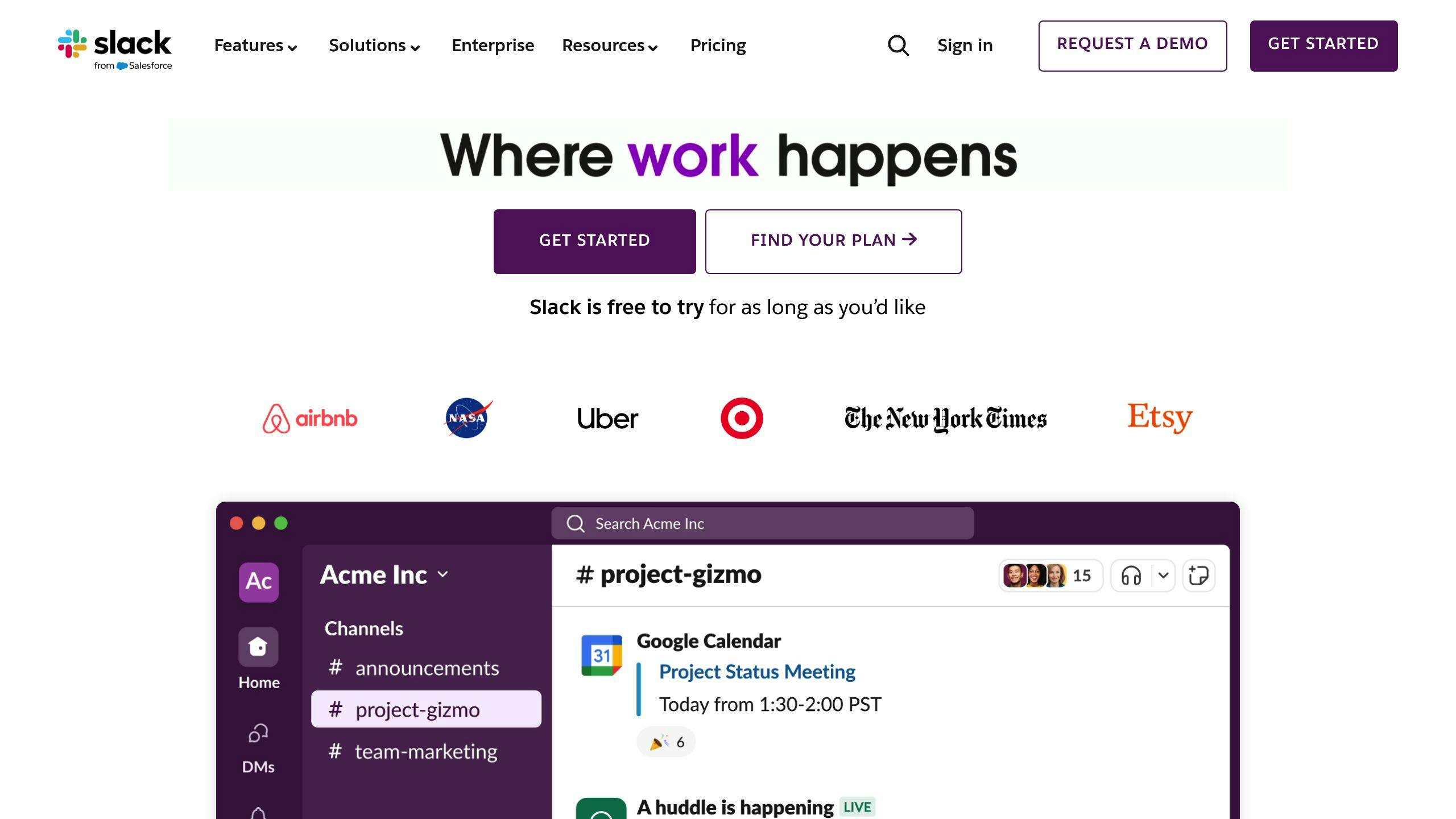
Slack is a popular team tool that lets people chat quickly. You can:
- Send messages to one person or a group
- Share files
- Make voice and video calls
- Show your screen to others
It's good for teams working from different places.
Calls
Slack has good quality video and voice calls. You can:
- Call one person or a group
- Share your screen during calls
This is useful for team meetings and talking to clients.
Files and Documents
With Slack, you can:
- Share files from your computer or cloud storage
- Work on documents with others at the same time
Slack works with other tools like Google Drive and Dropbox.
Tasks and Projects
Slack helps manage tasks and projects. You can:
- Make and give out tasks
- Check how work is going
- Set due dates
It works with other task tools like Trello and Asana.
| What Slack Can Do | Yes/No |
|---|---|
| Quick messaging | Yes |
| Video/voice calls | Yes |
| File sharing | Yes |
| Task management | Yes |
Pricing
Slack has different plans:
- Free plan: Has basic features
- Paid plans: Start at $7.25 per user each month (if you pay for a year)
Paid plans have more security and better support.
Slack is a good tool for teams of all sizes. It helps with talking, sharing, and working together.
2. Microsoft Teams
Messaging
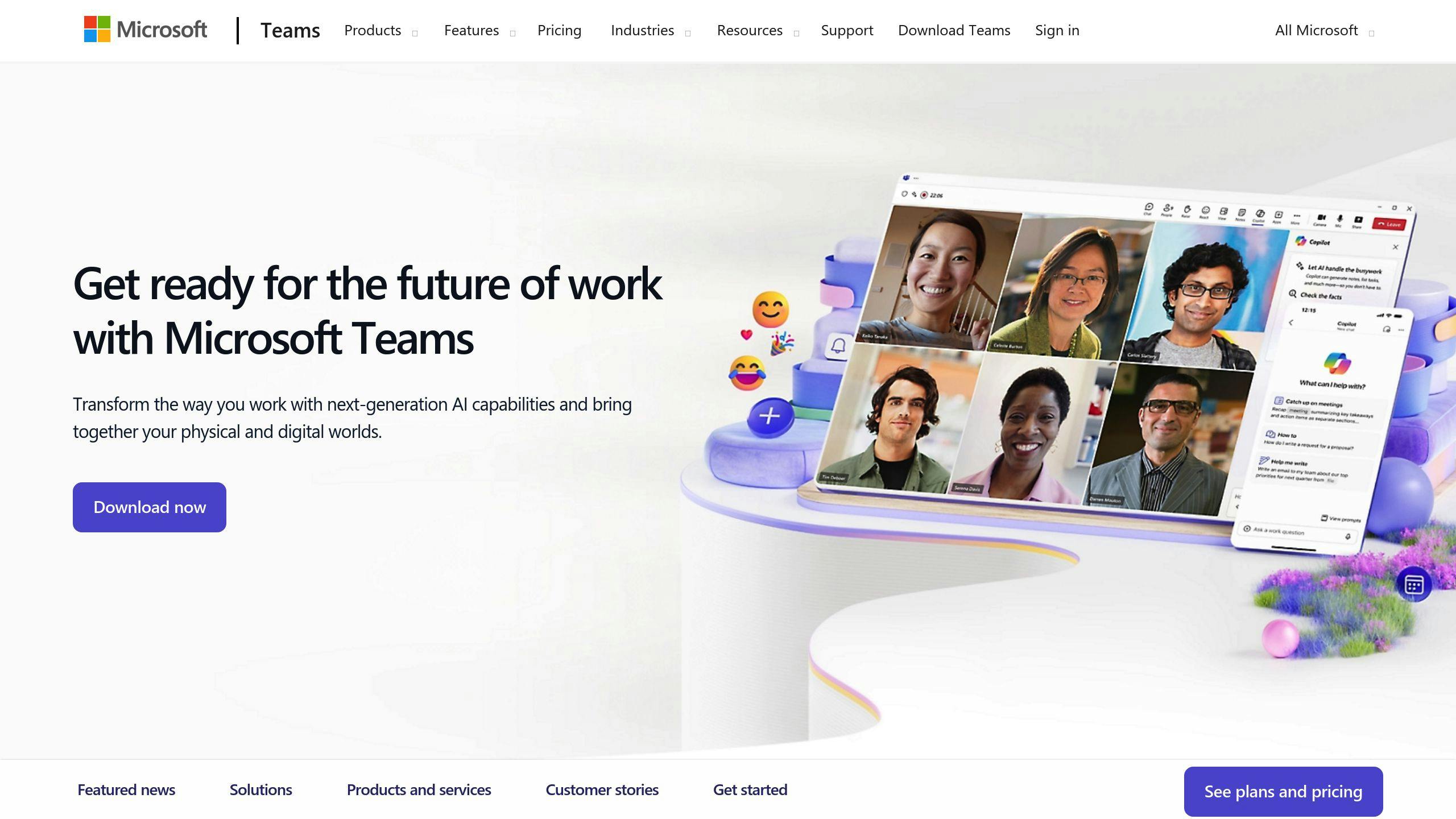
Microsoft Teams lets team members talk quickly:
- Send messages to one person or a group
- Share files
- Make voice and video calls
- Show your screen to others
It's good for teams working in different places.
Calls
Teams has good video and voice calls. You can:
- Call one person or a group
- Share your screen during calls
This helps with team meetings and talking to clients.
Files and Documents
With Teams, you can:
- Share files from your computer or cloud storage
- Work on documents with others at the same time
Teams works well with other Microsoft tools.
Tasks and Projects
Teams helps manage work. You can:
- Make and give out tasks
- Check how work is going
- Set due dates
It works with other task tools too.
| What Teams Can Do | Yes/No |
|---|---|
| Quick messaging | Yes |
| Video/voice calls | Yes |
| File sharing | Yes |
| Task management | Yes |
Pricing
Teams has different plans:
- Free plan: Has basic features
- Paid plans: Start at $5 per user each month
Paid plans have more security and better support.
Teams is good for all team sizes. It helps with talking, sharing, and working together.
3. Zoom

Messaging
Zoom lets teams talk quickly:
- Send messages to one person or a group
- Share files
- Make voice and video calls
- Show your screen to others
It's good for teams working in different places.
Calls
Zoom has good video and voice calls. You can:
- Call one person or a group
- Share your screen during calls
This helps with team meetings and talking to clients.
Files and Documents
With Zoom, you can:
- Share files from your computer or cloud storage
- Work on documents with others at the same time
Zoom works with other tools like Google Drive and Dropbox.
Tasks and Projects
Zoom has some basic task features. You can:
- Make and give out tasks
- Set due dates
For more task tools, you might need to use Zoom with other apps.
| What Zoom Can Do | Yes/No |
|---|---|
| Quick messaging | Yes |
| Video/voice calls | Yes |
| File sharing | Yes |
| Task management | Basic |
Pricing
Zoom has different plans:
- Free plan: Good for small teams
- Paid plans: More features and support
Zoom's prices are good for teams of all sizes.
Zoom is a good tool for teams that need to talk and work together from different places. It's best known for its video calls, but it also helps with messaging and sharing files.
4. Asana

Task and Project Management
Asana helps teams manage tasks and projects. With Asana, you can:
- Make and give out tasks
- Set due dates
- Check work progress
- Group tasks into projects
- Set up steps to do repeated tasks automatically
You can change Asana to fit how your team works. It also works with other tools you might use.
File Sharing and Working Together
Asana lets teams share files and work on them together. You can:
- Upload files from your computer or online storage
- Share files with your team
- Work on files at the same time as others
- Keep track of changes to files
These features make it easy to work with your team and other people.
Quick Messaging
Asana has ways for teams to talk quickly. You can:
- Send messages to team members
- Share files
- Use @ to get someone's attention
- Start and manage group talks
This helps teams stay in touch and know what's going on.
| What Asana Can Do | Yes/No |
|---|---|
| Manage tasks | Yes |
| Share files | Yes |
| Quick messaging | Yes |
| Video/voice calls | No |
Pricing
Asana has different plans for different team sizes:
- Free plan: Good for small teams
- Paid plans: More features and help
Asana's prices are fair for teams of all sizes.
Asana is good for keeping tasks and projects on track. It helps teams stay organized and get work done with its task management, file sharing, and messaging features.
5. Trello

Task and Project Management
Trello helps teams manage tasks and projects. With Trello, you can:
- Make and give out tasks
- Set due dates
- Track work progress
- Group tasks into boards, lists, and cards
- Set up steps to do repeated tasks
Trello's boards, lists, and cards make it easy to see and manage tasks.
File Sharing and Working Together
Trello lets teams share files and work on them together. You can:
- Upload files from your computer or online storage
- Share files with your team
- Work on files at the same time as others
- Keep track of file changes
Trello works with other tools like Google Drive and Dropbox for easy file sharing.
Quick Messaging
Trello has ways for teams to talk quickly:
- Send messages to team members
- Share files and links
- Use @ to get someone's attention
- Start and manage group talks
This helps teams stay in touch and know what's going on.
| What Trello Can Do | Yes/No |
|---|---|
| Manage tasks | Yes |
| Share files | Yes |
| Quick messaging | Yes |
| Video/voice calls | No |
Pricing
Trello has different plans:
- Free plan: Good for small teams
- Paid plans: More features and help
Trello's prices work for teams of all sizes. The free plan is good for small teams, while paid plans offer more for bigger teams.
Trello is good for teams that want to see their tasks and projects clearly. Its boards, lists, and cards help teams organize work. The file sharing and messaging features make it easy to work together on projects.
6. Notion

File Sharing and Working Together
Notion helps teams share files and work on documents. With Notion, you can:
- Upload files from your computer or online storage
- Share files with your team
- Work on files at the same time as others
- Keep track of file changes
Notion works with other tools like Google Drive, Slack, and GitHub.
Task and Project Management
Notion helps teams keep track of tasks and projects. You can:
- Make and give out tasks
- Set due dates
- Check work progress
- Group tasks in different ways (boards, lists, tables, timelines)
- Set up steps for tasks you do often
Notion lets teams set up their workspace how they want.
| What Notion Can Do | Yes/No |
|---|---|
| Manage tasks | Yes |
| Share files | Yes |
| Quick messaging | Yes |
| Video/voice calls | No |
Pricing
Notion has different plans:
- Free plan: Good for small teams and single users
- Paid plans: More features and help
Notion's prices work for all team sizes. Small teams can use the free plan, while bigger teams might want paid plans.
Notion is good for teams who want to see their work clearly. Its workspace helps teams organize tasks. The file sharing and teamwork features make it easy to work on projects together.
sbb-itb-0603db5
7. Monday.com

File Sharing and Document Work
Monday.com helps teams share files and work on documents together. With Monday.com, you can:
- Upload files from your computer or online storage
- Share files with your team
- Work on files at the same time as others
- Keep track of file changes
Monday.com works with other tools like Google Drive, Slack, and GitHub.
Task and Project Management
Monday.com helps teams keep track of tasks and projects. You can:
- Make and give out tasks
- Set due dates
- Check work progress
- Group tasks in different ways (boards, lists, tables, timelines)
- Set up steps for tasks you do often
Teams can set up their workspace how they want.
| Feature | Monday.com |
|---|---|
| Task management | Yes |
| File sharing | Yes |
| Quick messaging | Yes |
| Video/voice calls | No |
Pricing
Monday.com has different plans:
- Free plan: Good for small teams and single users
- Paid plans: More features and help
Prices work for all team sizes. Small teams can use the free plan, while bigger teams might want paid plans.
Monday.com is good for teams who want to see their work clearly. Its workspace helps teams organize tasks. The file sharing and teamwork features make it easy to work on projects together.
8. Jira

Task and Project Management
Jira helps teams track and manage work. It offers:
- Custom issue types, fields, and workflows
- Kanban and Scrum boards
- Issue creation and assignment
- Priority setting
- Progress tracking
- Advanced search
- Filters and dashboards
File Sharing and Working Together
With Jira, teams can:
- Upload files from computers or online storage
- Share files with team members
- Work on files at the same time
- Keep track of file versions and changes
| What Jira Can Do | Yes/No |
|---|---|
| Manage tasks | Yes |
| Share files | Yes |
| Quick messaging | Yes |
| Video/voice calls | No |
Pricing
Jira has different plans:
- Free plan: For small teams
- Standard plan: Starts at $5 per user each month
- Premium plan: Starts at $10 per user each month
- Enterprise plan: For big teams, custom pricing
Jira is good for teams that need a strong project management tool. It works well for small teams and big companies.
9. Miro
File Sharing and Working Together
Miro is an online whiteboard tool that helps teams work together from different places. With Miro, you can:
- Upload files from your computer or cloud storage
- Share files with your team
- Work on files at the same time as others
- Keep track of file changes
Task and Project Management
While Miro isn't mainly for managing tasks, it can help teams:
- Come up with new ideas
- Plan projects
- Design new products
- Run team meetings
Miro is good for visual work, like making diagrams or mind maps.
Quick Messaging
Miro lets team members:
- Work together in real-time
- Give feedback quickly
- Make decisions faster
This helps teams get work done more quickly.
| What Miro Can Do | Yes/No |
|---|---|
| Manage tasks | No |
| Share files | Yes |
| Quick messaging | Yes |
| Video/voice calls | Yes |
Pricing
Miro has different plans:
- Free plan: For small teams starting out
- Paid plans: Start at $8 per month
The free plan lets you:
- Have as many team members as you want
- Use 3 boards at a time
- Use all the ready-made templates
For more features, you can choose a paid plan.
Miro works well for teams that need to work together visually. It's good for small teams and big companies, especially for:
- Thinking of new ideas
- Managing projects
- Designing new products
- Running team meetings
10. Google Workspace

Messaging
Google Workspace has Google Chat for quick team talks. You can:
- Send messages to one person or a group
- Share files
- Talk about work in real-time
This helps teams stay in touch and share ideas fast.
Files and Documents
Google Workspace is good at sharing files and working on them together:
- Store and share files with Google Drive
- Work on documents, spreadsheets, or slides at the same time
- Add comments to files
This makes it easy for teams to work on projects together.
Tasks and Schedules
Google Workspace has some tools to help manage work:
- Make to-do lists with Google Tasks
- Plan meetings with Google Calendar
It also works with other task tools like Asana and Trello.
| What Google Workspace Can Do | Yes/No |
|---|---|
| Manage tasks | Basic |
| Share files | Yes |
| Quick messaging | Yes |
| Video/voice calls | Yes |
Pricing
Google Workspace has different plans:
| Plan | Price per user per month |
|---|---|
| Business Starter | $6 |
| Business Standard | $12 |
| Business Plus | $18 |
| Enterprise | Ask for price |
Each plan has different features and storage space. Pick the one that fits your team best.
Google Workspace is good for teams that need to:
- Work on documents together
- Talk quickly
- Manage their work
It works well with other Google tools, which is good if your team already uses them.
Comparison Table
Here's a simple table that shows the main features and prices of each tool:
| Tool | Price per user per month | Main Features |
|---|---|---|
| Slack | $7.25 | Quick messages, file sharing, works with other apps |
| Microsoft Teams | $4 | Quick messages, voice/video calls, file sharing |
| Zoom | $14.99 | Video meetings, screen sharing, recording |
| Asana | $13.49 | Task management, work flows, reports |
| Trello | $12.50 | Boards, lists, cards for organizing work |
| Notion | $8 | Note-taking, teamwork, data organization |
| Monday.com | $12 | Work system, automatic tasks, works with other apps |
| Jira | $8.15 | Project management, problem tracking, step-by-step work |
| Miro | $8 | Online whiteboard, teamwork, works with other apps |
| Google Workspace | $6 | Messages, files, tasks, schedules |
What the Table Shows
- Price: How much each tool costs per user each month.
- Main Features: The key things each tool can do, based on what we know about them.
This table gives you a quick look at what each tool costs and does. It helps you see how they're different from each other.
Picking the Right Collaboration Tool for Your Team
Choosing a team collaboration tool can be tricky. Here's how to pick the best one for your team:
Look at What Your Team Needs
Before you choose a tool:
- List what your team needs to do together
- Put these needs in order of importance
Check Your Current Tools
Look at how your team works now:
- What tools do you use?
- Do they work well?
- What problems do you have?
Ask Your Team
Get your team's thoughts:
- What do they like or dislike about current tools?
- What features do they want?
Think About Team Growth
Consider how your team might grow:
- Will the tool work for more people?
- Can it do more as your team gets bigger?
Pick the Most Important Features
Based on what you've learned:
- List the features your team must have
- Focus on these when looking at tools
Here's a table to help you compare tools:
| Feature | Tool A | Tool B | Tool C |
|---|---|---|---|
| File sharing | Yes | No | Yes |
| Task management | No | Yes | Yes |
| Video calls | Yes | Yes | No |
| Works on phones | Yes | No | Yes |
| Price per month | $10 | $8 | $12 |
Use this table to see which tool fits your needs best.
Wrap-up
Picking the right tool for team work is important. It helps teams work better together, even when they're not in the same place. There are many tools to choose from, which can make it hard to decide.
When picking a tool, think about:
- What your team needs
- How much money you can spend
- If it works with other tools you use
Look at what each tool can do, like:
- Sending messages
- Sharing files
- Managing projects
- Working together on visual tasks
Think about how your team likes to work and if you can try the tool for free before buying it.
Here's a table to help you compare tools:
| Thing to Think About | Why It's Important |
|---|---|
| Team needs | Makes sure the tool fits your team |
| Cost | Stays within your budget |
| Works with other tools | Helps everything work together |
| Free trial | Lets you test before buying |
Using the right tool can help your team:
- Talk to each other better
- Feel more connected
- Get more work done
By picking a good tool, your team can:
- Work faster
- Work better together
- Do a better job
This can help your team do well in today's work world.
FAQs
What is the most used team work tool?
| Type | Tool | Main Use |
|---|---|---|
| Chat | Slack | Quick messages |
| Video | Zoom | Online meetings |
| Drawing | Miro | Team drawing |
Slack, Zoom, and Miro are the top tools teams use to work together. These help teams talk, meet, and share ideas when working from different places.
Which tool is best for managing team tasks?
| Tool | Best For |
|---|---|
| Trello | To-do lists |
| nTask | Big projects |
| Evernote | Taking notes |
| ClickUp | Big projects |
Different tools help with different team needs. Trello is good for to-do lists. nTask and ClickUp help with big projects. Evernote is great for taking notes.
What are the top tools for team work?
| Type | Tool | Main Use |
|---|---|---|
| Chat | Slack | Quick messages |
| Video | Zoom | Online meetings |
| Drawing | Miro | Team drawing |
| Ideas | MindMeister | Brainstorming |
The best tools depend on what your team needs. Slack is good for quick chats. Zoom works well for video calls. Miro helps teams draw ideas together. MindMeister is great for thinking up new ideas. Picking the right tool can help your team work better.